Projects and Repositories#
Overview#
After logging into SysGit, you'll land on the Projects dashboard. This is your central hub for accessing, managing, and organizing your systems engineering projects. Each project in SysGit corresponds to a Git repository in your organization's Git provider.
Understanding the Projects Interface#
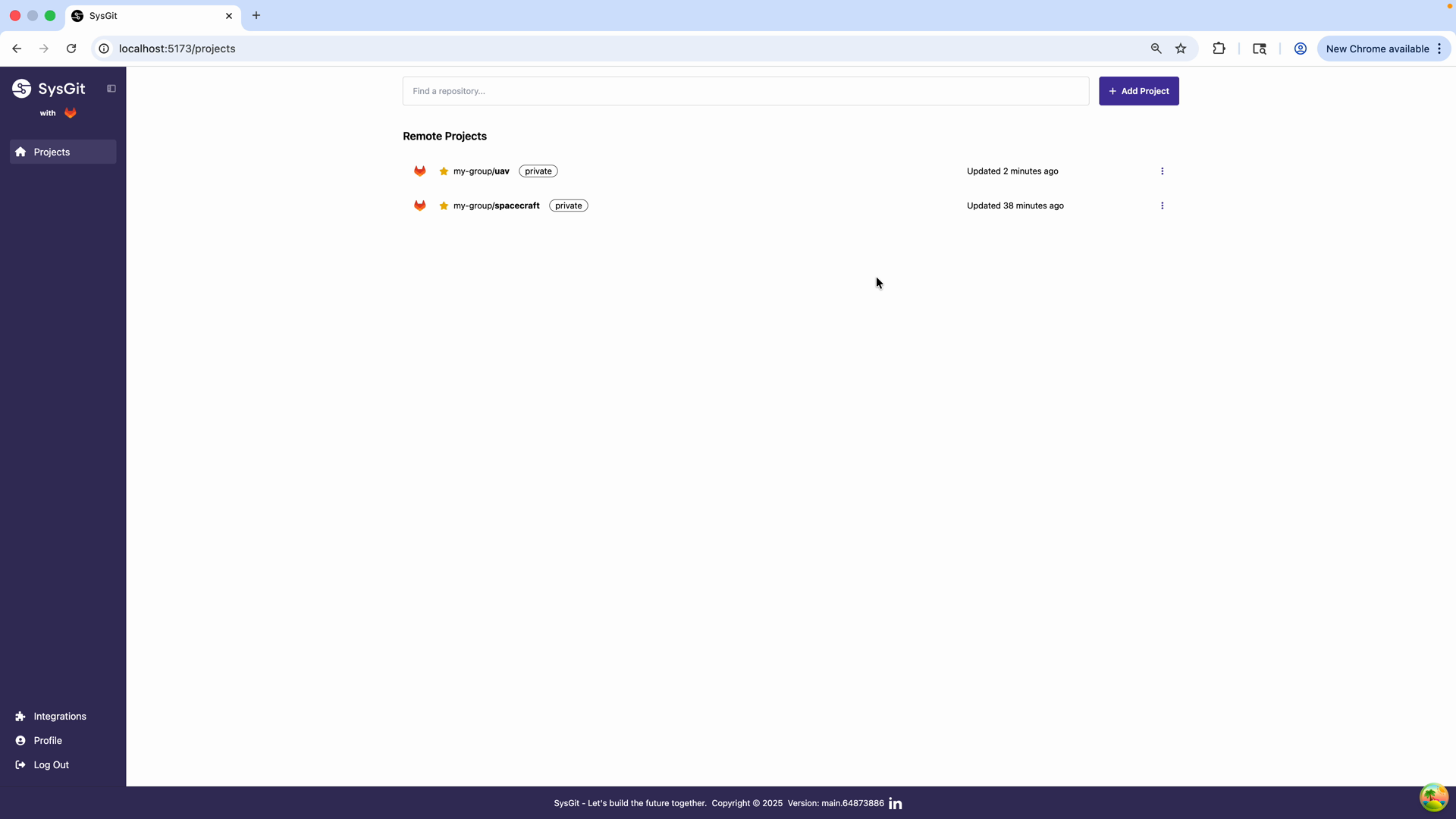
The Projects dashboard includes several key components:
Navigation Sidebar#
- Projects: Your main workspace (with your Git provider logo)
- Integrations: Configure additional tool integrations
- Profile: User account settings
- Log Out: End your current session
Main Content Area#
- Repository search: Quickly find projects by name
- Add Project button: Import new repositories into SysGit
- Remote Projects list: All repositories you have access to
- Visibility indicators: Shows whether projects are private or public
- Recent activity: Last update timestamps for each project
Working with Projects#
Viewing Your Projects#
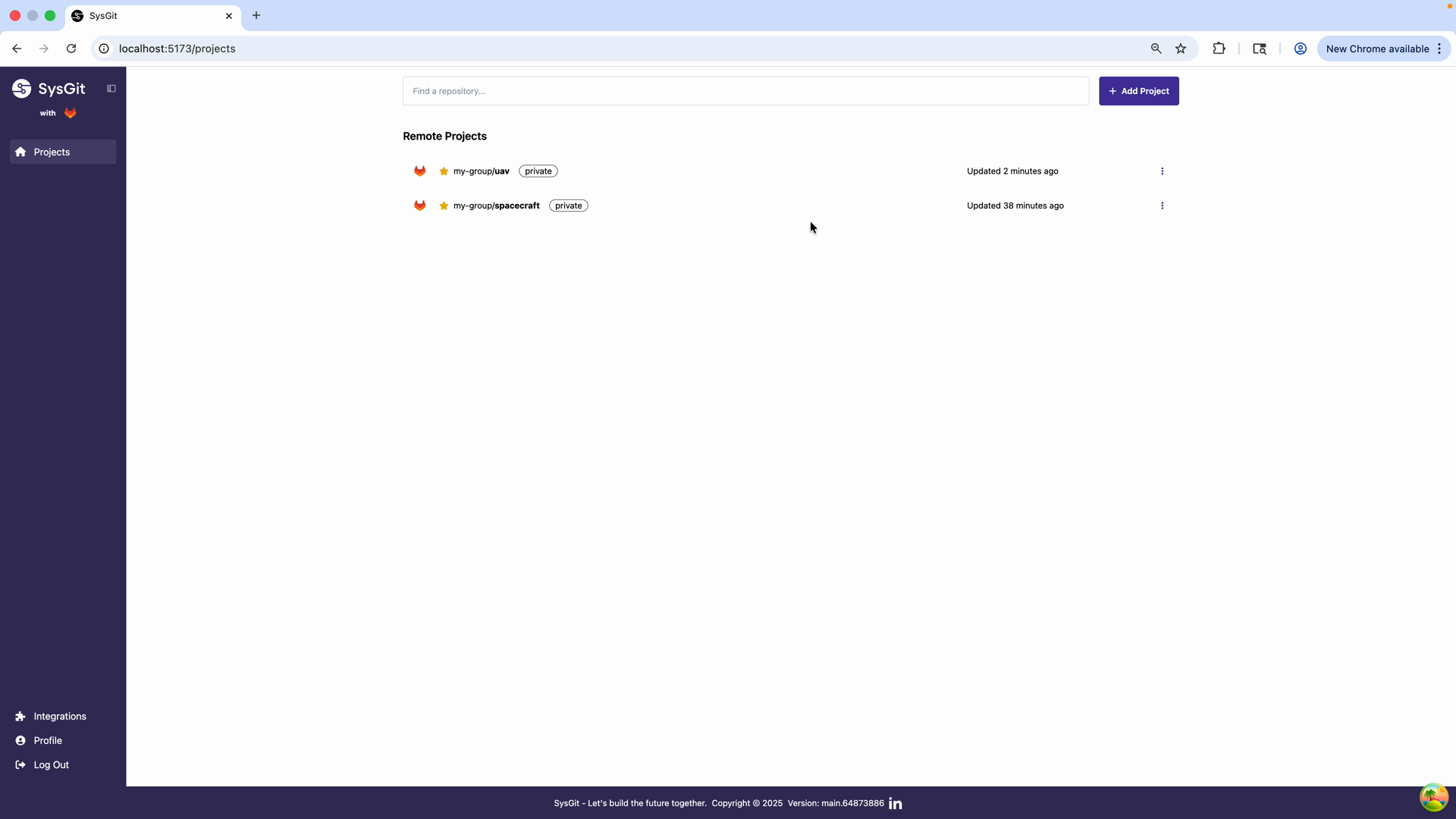
Your Projects dashboard displays all Git repositories you have access to through your Git provider. Each project entry shows:
- Project name (with group/organization prefix)
- Visibility status (Private/Public)
- Last update time (e.g., "Updated 2 minutes ago")
In the example above, two private repositories are visible:
- my-group/uav (Updated 2 minutes ago)
- my-group/spacecraft (Updated 38 minutes ago)
Adding a New Project#
To work with a repository in SysGit, click the "Add Project" button. This allows you to import repositories from your Git provider into SysGit's interface.
Note: You can only add projects (repositories) that you have access to in your Git provider. SysGit inherits all permissions from your Git provider's access control settings.
Searching for Projects#
Use the search bar at the top of the projects list to quickly filter and find specific repositories. This is especially useful if you have access to many repositories across different groups or organizations.
Opening a Project#
Click on any project in your list to open it and begin working with requirements, system models, and verifications.
Understanding Repository Structure#
SysGit projects are organized around Git repositories. Each repository can contain:
- Requirements: Stored as SysML v2 textual notation
- System Models: Parts, ports, and architectural elements
- Verifications: Test and validation artifacts
- Traceability: Relationships between all elements
All of this information is version-controlled through Git, allowing you to: - Track changes over time - Collaborate with team members - Create branches for parallel development - Review and approve changes through merge/pull requests
Project Access and Permissions#
Your access to projects in SysGit is controlled entirely by your Git provider:
- If you have read access in your Git provider, you can view the project in SysGit
- If you have write access in your Git provider, you can edit requirements and models
- If you're an admin in your Git provider, you have full project management capabilities
To request access to a project or modify permissions, work with your Git provider's access control system (not within SysGit itself).
Importing Requirements from Spreadsheets#
SysGit supports importing requirements from spreadsheet formats (Excel, CSV) to help you migrate existing requirements into the system. This feature is available when you first create or set up a project.
For detailed instructions on importing requirements, see the Requirements Management documentation.
Next Steps#
Once you've identified and opened a project, you can:
- View and manage requirements - See Requirements Management
- Create system models - See System Modeling
- Set up verifications - See Verification Management
- Collaborate with your team - Apply branching and merging strategies for collaborative hardware development
Troubleshooting#
I don't see any projects#
If your Projects dashboard is empty: 1. Verify you have access to repositories in your Git provider 2. Click "Add Project" to import repositories you have access to 3. Contact your team lead or administrator if you need access to specific repositories
A project I should have access to isn't showing#
- Check your permissions in your Git provider (GitHub, GitLab, Gitea)
- Try refreshing the page
- Click "Add Project" to manually import the repository
- Contact your Git provider administrator to verify access rights
Project shows "Access Denied"#
This means your Git provider permissions have changed. Contact your administrator to restore access in your Git provider.